








When you are trying to open a file with a missing extension or one that has been corrupted and renamed, what is an efficient solution?
You can use UltraEdit as a hex editor to discover file types by examining their file headers instead of making guesses.
Every file starts with a file signature or magic number, which is a distinctive sequence of bytes. The signature enables both software systems and developers to identify file types regardless of whether the extension exists or is incorrect.
What are file headers?
A file header consists of the first few bytes at the beginning of a file. These bytes are written in hexadecimal format and follow consistent patterns based on the file type.
When you open a file in UltraEdit’s Hex Mode, you can examine these bytes directly.
For example:
- JPG (JPEG) files start with FF D8
- PNG files start with 89 50 4E 47 0D 0A 1A 0A (or 50 4E 47 starting at byte 2)
- GIF files start with 47 49 46 38

Sample Image
To demonstrate, I converted this sample image into the three formats mentioned above. Here’s how each one looks in UltraEdit’s hex editor.
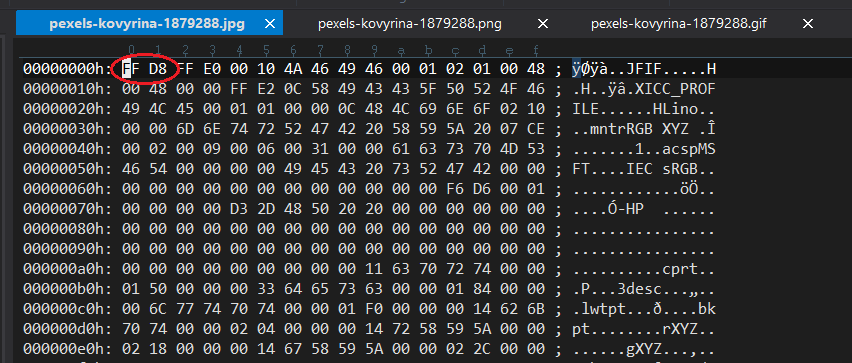
Sample JPG file opened in UltraEdit hex editor

Sample PNG file opened in UltraEdit hex editor
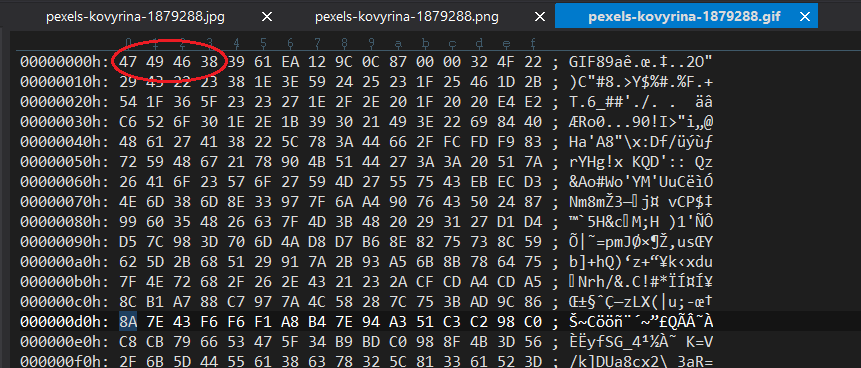
Sample GIF file opened in UltraEdit hex editor
By checking these values in a hex editor, you can often determine what the file really is, even if the extension says otherwise, or is missing entirely.
Real-world use case: Recovering an image file
Let’s say you receive a file with no extension, and your image viewer can’t open it.

Opening an image file with a missing extension
Here’s how you can use UltraEdit to find out what type of image it is:
1. Open the file in Hex Mode.
2. Look at the first few bytes.
-
- If you see FF D8, it’s a JPEG.
- If you see 50 4E 47, it’s a PNG.
- If you see 47 49 46, it’s a GIF.
- If you see FF D8, it’s a JPEG.
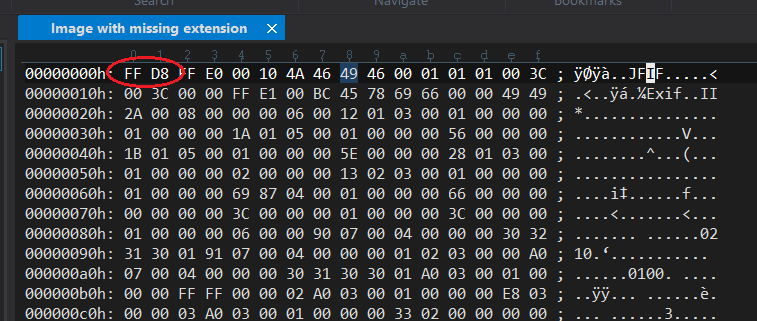
Image with missing extension opened in a hex editor
3. Rename the file with the correct extension (e.g., .jpg or .png). The file header starts with FF D8, indicating that this is a JPEG format image.
4. Try opening it again with an image viewer.

Image with corrected extension .jpg
This trick is particularly helpful when recovering files from corrupted drives, email attachments, or broken software exports.
Why it matters
Identifying files by their hex signature is a powerful skill:
- It helps recover partially corrupted files.
- It’s useful for digital forensics and malware analysis.
- It ensures file authenticity and integrity in security workflows.
And with UltraEdit, this process is seamless, thanks to its intuitive hex viewer and support for large file sizes.
Open any mystery file in UltraEdit’s Hex Mode and decode its true identity today.



0 Comments